The entire Gantt chart can quickly be sorted ascending or descending by whichever column you wish. I want to show you how.
When you have opened a Gantt chart from your project list, hover your mouse cursor over one of the columns like this:

When you click (with the left mouse button) on the little arrow icons, the sorting context menu shows up like this:
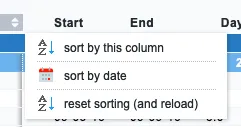
This menu is pretty self-explanatory:
- Sort the Gantt chart by the selected column (in the case of this example, sort the Gantt chart ascending by the description column
- Sort the Gantt chart by date ascending
- Reset the sorting and reload the Gantt chart
Sort the Gantt chart by the selected column
(Left) Click this menu item once to sort ascending by this column’s data. That can be the description column, but you could choose to sort by assignee, duration, or any other column you have activated.
Sort by date
Left-click this menu item once to sort by the dates of each row, ascending
Reset sorting
Left-click the reset sorting action, and the Gantt chart will now reload and remove any custom sorting that was previously applied. The default sorting depends on the integration you’re using.