If your team owner has configured default Gantt chart settings, you can apply them to your view with a single click. This replaces your personal customizations with the shared team layout, including column visibility, column widths, and zoom level.
How to apply team default settings
Open the Timeline settings dialog by clicking the gears icon in the top left corner of your Gantt chart. Select the Team tab, then click the Use default team settings button.
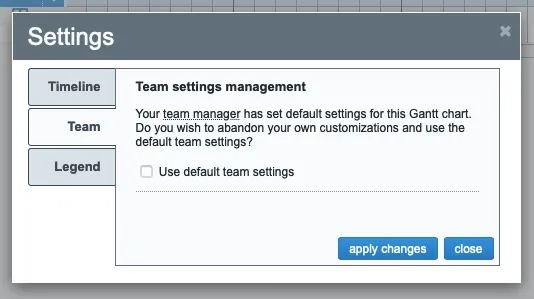
Close the dialog and your Gantt chart refreshes to match the team owner’s view.
Returning to your personal customizations
To switch back, simply modify any aspect of the Gantt chart: resize a column, change the zoom level, or apply a filter. Ganttify saves these changes automatically, and your personal preferences override the team defaults going forward.
To return to the team defaults later, repeat the steps above.