Sharing your Gantt chart with clients, stakeholders, or team members keeps everyone aligned on project timelines without requiring them to create a Ganttify account. With Published Charts, you can generate a shareable link that gives recipients read-only access to your project timeline.
Why share your Gantt chart?
Project managers often need to communicate timelines to people outside their immediate team. Common scenarios include:
- Client reporting: Keep clients informed about project progress and delivery dates
- Stakeholder updates: Share high-level timelines with executives or sponsors
- Cross-team collaboration: Give other departments visibility into your schedule
- Contractor coordination: Help external vendors understand deadlines and dependencies
Published Charts solve this by providing a live, always-up-to-date view of your Gantt chart that anyone can access through a simple link.
How to publish and share a Gantt chart
Follow these steps to create a shareable link for your project timeline.
Step 1: Select your projects
From the Project List, select one or more projects you want to share. Click the checkbox next to each project, or click directly on the project row to select it.
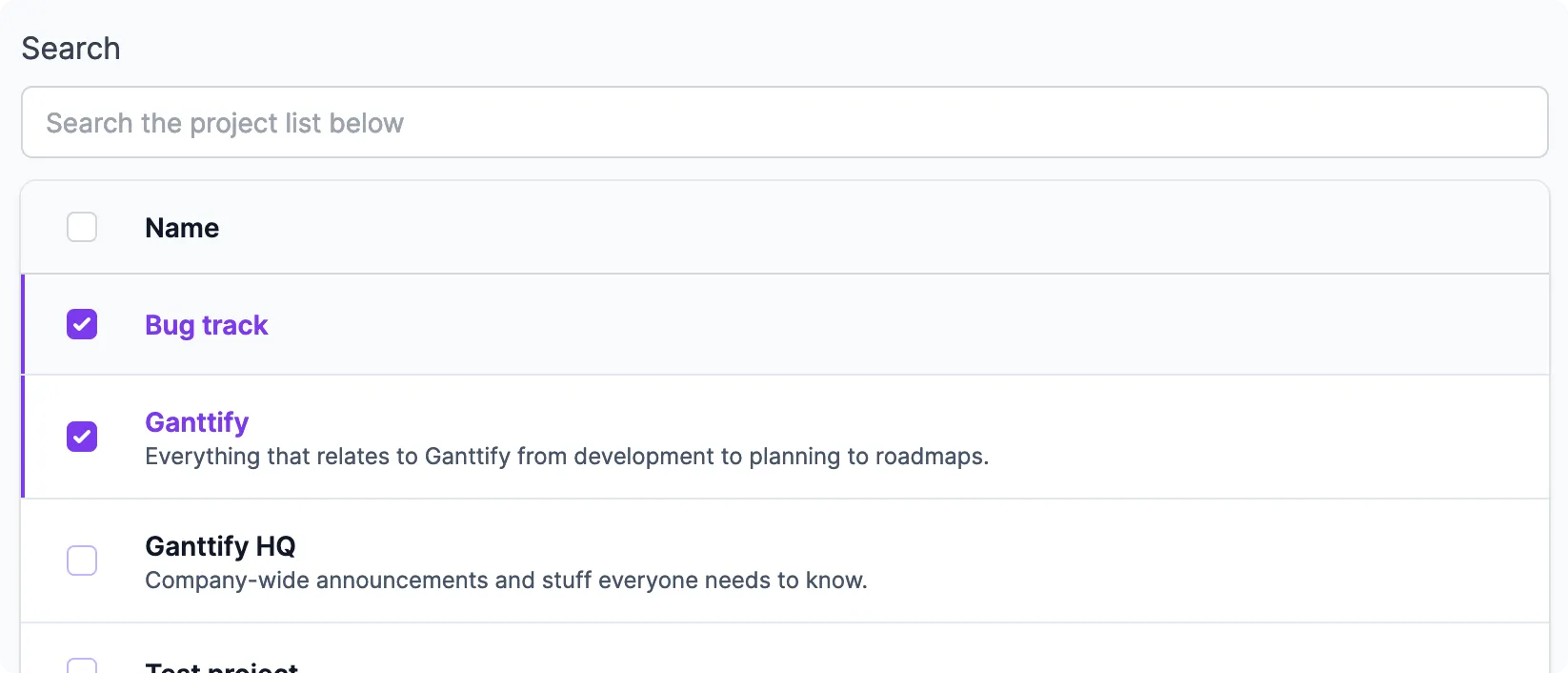
You can publish a single project or combine multiple projects into a multi-project Gantt chart for a portfolio-level view.
Step 2: Click the Publish button
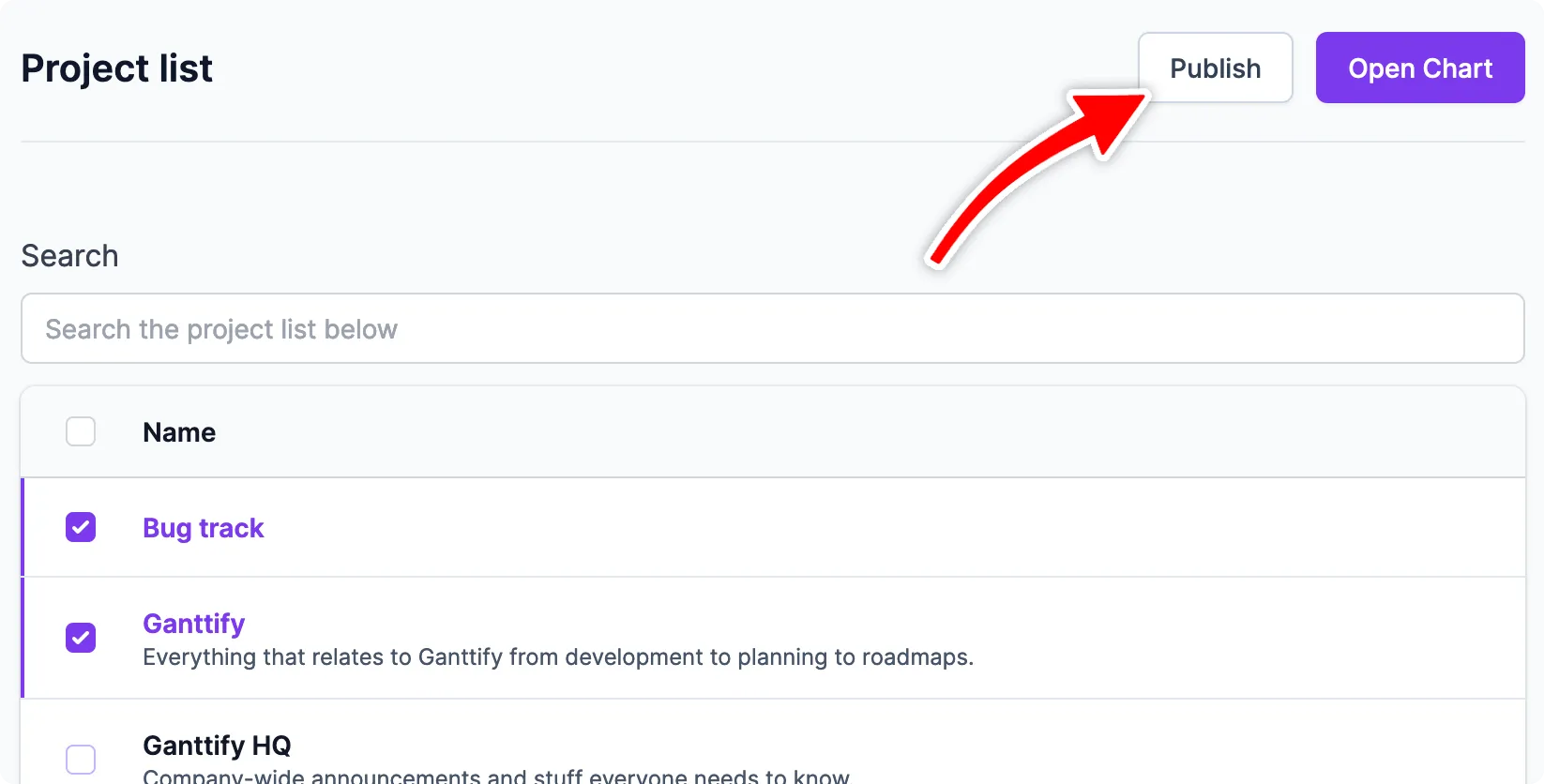
With your projects selected, click the Publish button at the top of the Project List.
Step 3: Copy and share your link
Your Published Chart is now ready. The dialog displays a short, shareable URL you can copy and send to anyone.
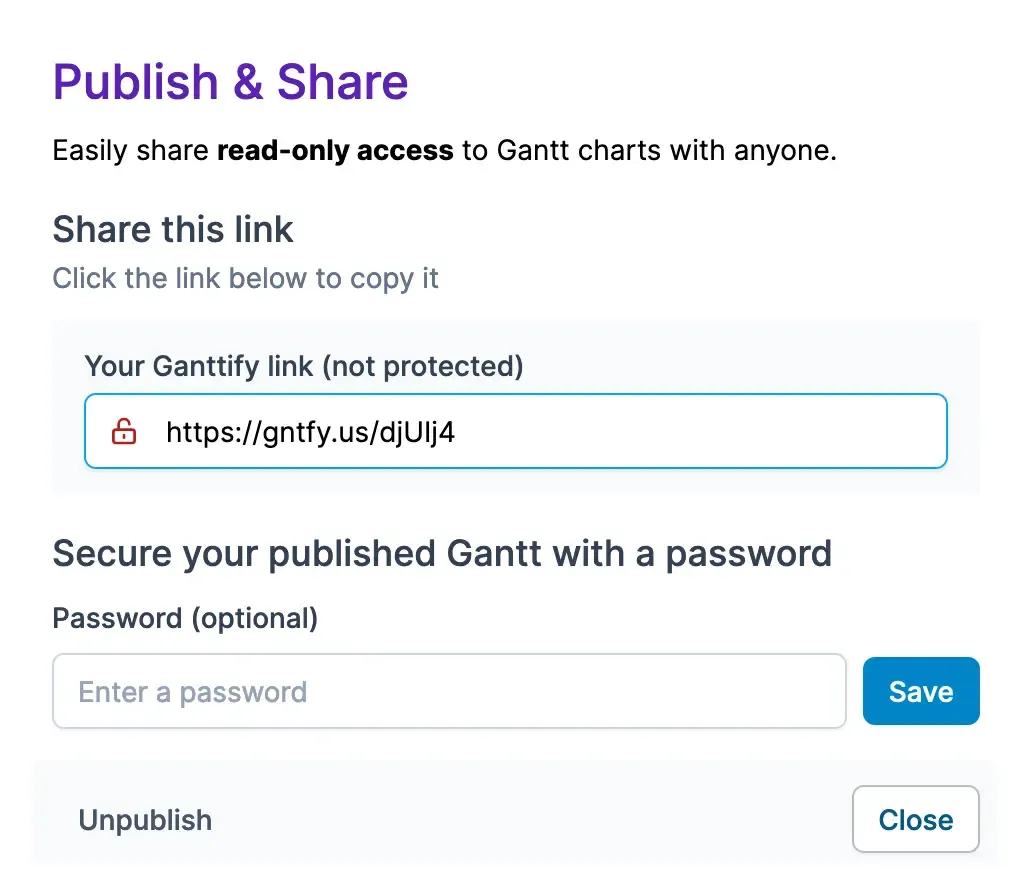
Recipients who open this link will see a read-only version of your Gantt chart. They can view the timeline, tasks, and dates, but cannot make any changes.
What recipients see when viewing your shared Gantt chart
When someone opens your Published Chart link, they see:
- The full Gantt chart timeline with all visible tasks
- Task names, start dates, end dates, and durations
- Dependencies between tasks (if configured)
- Groups and rows as you’ve organized them
Password-protect your shared Gantt chart
By default, Published Charts are accessible to anyone with the link. For projects containing sensitive information, you should add password protection.
How to set a password
- In the Publish & Share dialog, enter a password in the password field
- Click Save
- The red open-lock icon changes to a green closed-lock icon, confirming protection is active
When password protection is enabled, recipients must enter the correct password before viewing your Gantt chart.
When to use password protection
Consider password protection for:
- Projects with confidential client information
- Internal timelines not meant for public viewing
- Charts shared via email that could be forwarded
How to unpublish a Gantt chart
When a project completes or you no longer want to share public access, you can unpublish the chart.
- Select the published project(s) in the Project List
- Click the Publish button
- In the dialog, click Unpublish at the bottom left
Unpublishing immediately invalidates the shared link. Anyone who tries to access the old link will see an error message.
Frequently asked questions
Can recipients edit the shared Gantt chart?
No. Published Charts are read-only. Recipients can view the timeline but cannot make changes. Only users with Ganttify accounts and proper permissions can edit the underlying project data.
Does the shared link update automatically?
Yes. Published Charts are fully live. When task dates change in your connected integration, those updates appear automatically in the Published Chart. This makes shared links ideal for keeping clients informed about project progress without any manual updates on your part.
How many Gantt charts can I publish?
There is no limit to the number of Published Charts you can create. You can publish as many projects as needed.
Can I customize what information appears in the shared chart?
Use the filter and hide features to control which tasks appear before publishing. Hidden rows and filtered content will not show in the Published Chart.